
Real use cases
@amset/ui was not made for a demo site: it comes out of AMSET's own applications. These are three screens of the real application, captured in production, and what in each one comes from the library.
The assistant
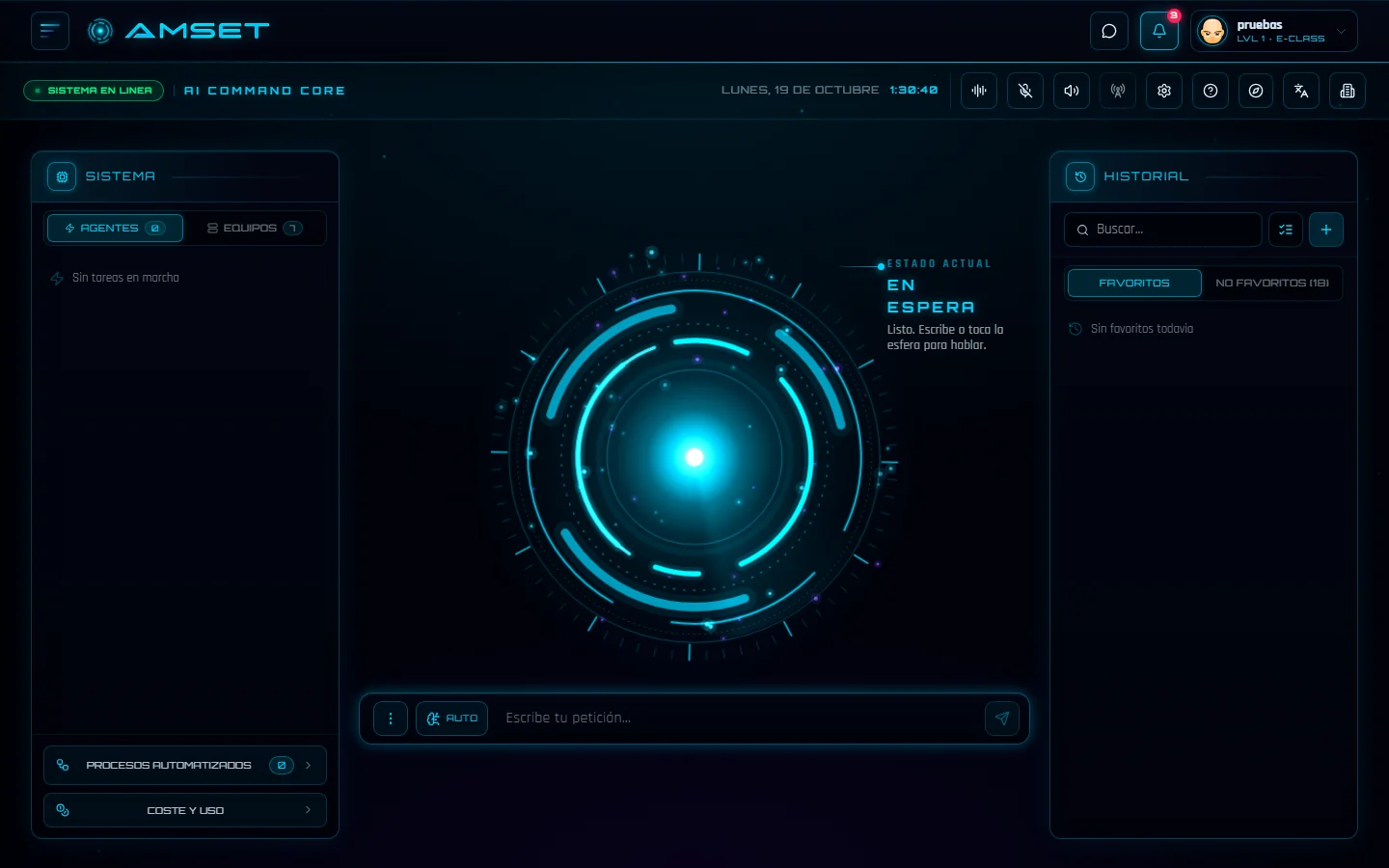
AMSET's main screen: a sphere that listens, a bar to type the request, the running agents on one side and the history on the other.
What comes from @amset/ui
The buttons of both bars, the request bar and the history search are Button and TextField. Settings, machines, accounts and the rest of the windows are Dialog: twenty-two are mounted on this screen, closed, and each brings the platform's focus handling and Escape key. The sphere and the look of each panel belong to the application.
- Button
- TextField
- Dialog
Company: the ticket board
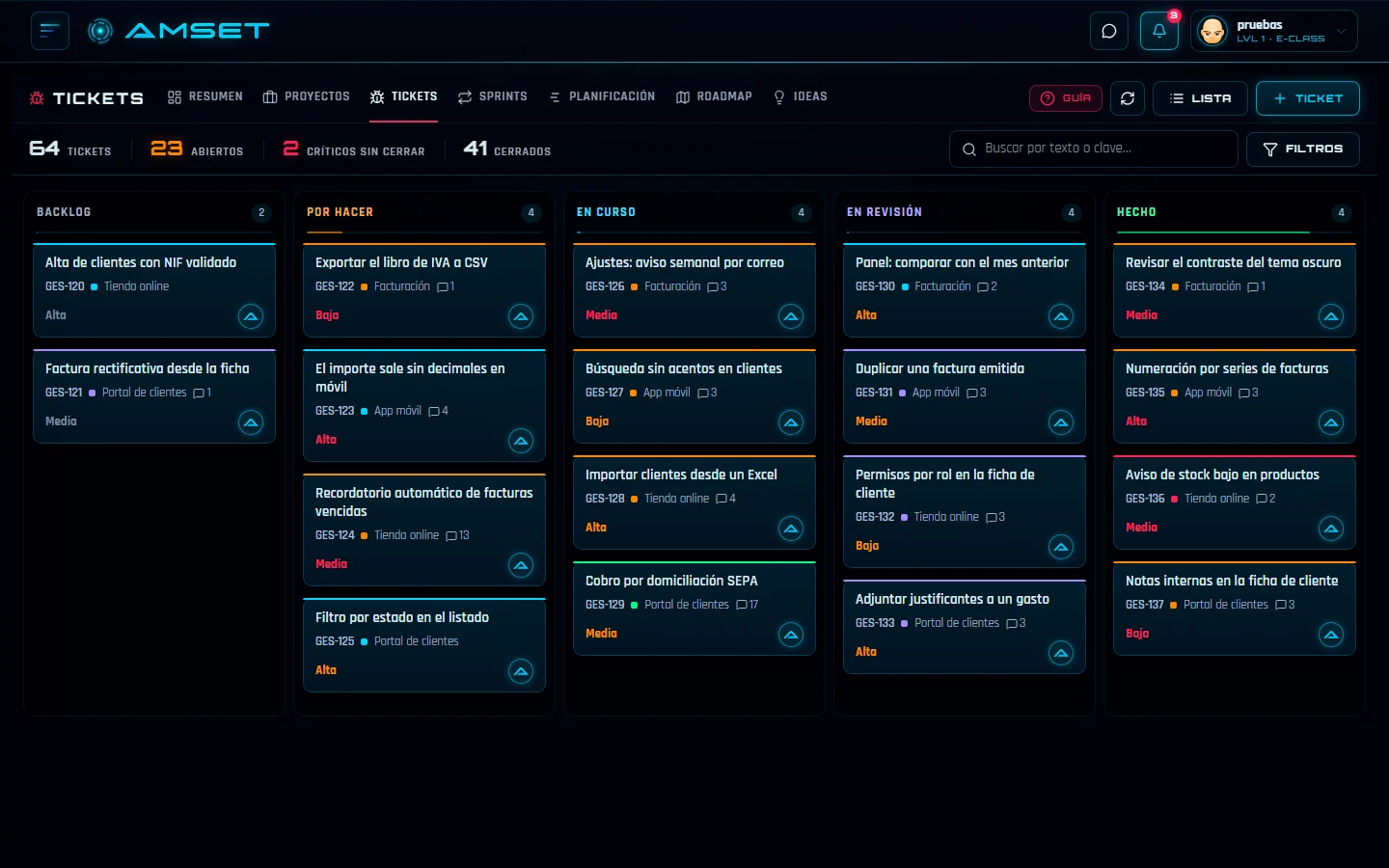
The company's work in five columns, from backlog to done, with its search, its filters and the figures at the top. It is where AMSET's tasks are managed.
What comes from @amset/ui
Every card carries its Button, with a visible focus and the platform's keyboard handling without writing anything, and so do the ones in the top bar: there are over three hundred on the real screen. The search box is a TextField. The columns, their coloured edge and the figures belong to the application.
- Button
- TextField
The Path: your day
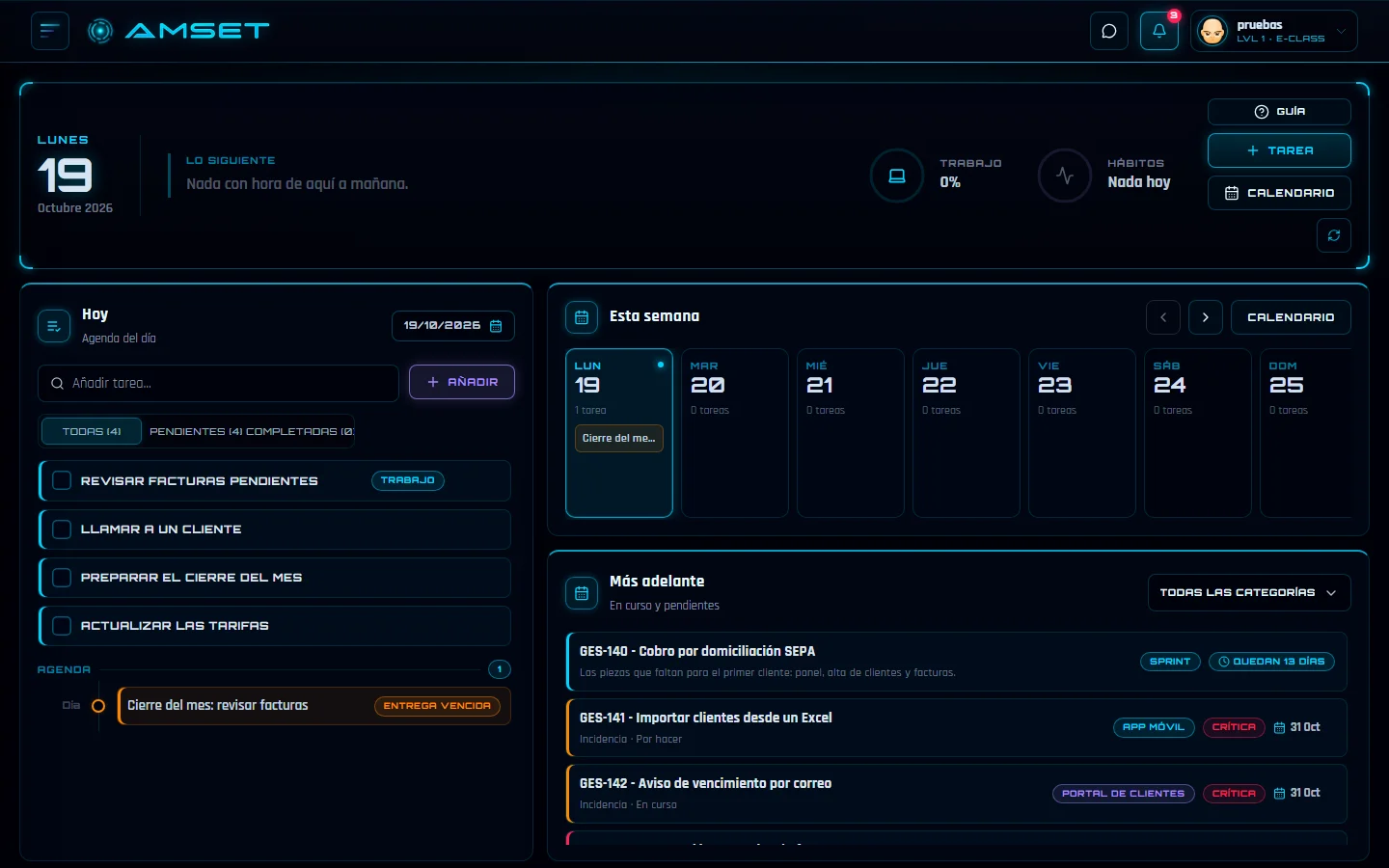
The entry screen of every day: the date, what is next on the agenda, today's tasks, the week and what comes later, filterable by category.
What comes from @amset/ui
Tasks are added with a TextField and filtered with a SegmentedGroup (all, pending, completed): a real radio group, with its arrow keys. "All categories" is a Select, the blocks are Card and the actions are Button. The day cards and the clock belong to the application.
- Button
- Card
- SegmentedGroup
- Select
- TextField
Same component, another face
The AMSET application is electric blue on black, with another typeface and other shapes, and it uses the very same components as any project. It has not touched them inside: its look comes from a configuration file and from npx amset-ui theme, which generates the CSS with the contrast already checked. This is the part that defines its colours:
export default { palette: { brand: '#00D4FF', error: '#FF2255', success: '#00FF88', neutral: '#00020A', }, colors: { dark: { background: 'rgb(0, 2, 10)', ink: 'rgb(230, 250, 255)', accent: 'rgb(0, 212, 255)', }, }, base: { font: "'Rajdhani', sans-serif" },}And for your application
The same can be set up from scratch in a minute: npx amset-ui create makes a Next or Vite project with the library in place, and npx amset-ui add copies whole screens (the management dashboard, adding a customer, the invoice, the settings) built only with these components.